Learning Objectives
After completing this lesson, you'll be able to:
- Use parameters to give users options when using self-serve applications.
- Configure a self-serve service with user parameters on FME Flow.
In this lesson, you will:
- Optional: Watch a demonstration video (if you have not attended the live training).
- Scroll down to read the activity instructions below and follow the steps in your lab.
- Complete the quiz at the end of this lesson.
- Click 'Next' to mark the lesson complete.
Learning Objectives
After completing this lesson, you'll be able to:
- Use parameters to give users options when using self-serve applications.
- Configure a self-serve service with user parameters on FME Flow.
In this lesson, you will:
- Optional: Watch a demonstration video (if you have not attended the live training).
- Scroll down to read the activity instructions below and follow the steps in your lab.
- Complete the quiz at the end of this lesson.
- Click 'Next' to mark the lesson complete.
Resources
- Starting workspace | C:\FMEData\Workspaces\DeployWorkflowsWithFMEFlow\create-a-user-controlled-workspace.fmw
- Complete workspace | C:\FMEData\Workspaces\DeployWorkflowsWithFMEFlow\create-a-user-controlled-workspace--complete.fmw
User Parameters on FME Flow
FME Flow displays user parameters in a sleek, easy-to-use form that you populate before running the workspace. FME Flow shows each parameter with the appropriate control based on its type. Here are examples of how a few common parameter types appear on FME Flow:
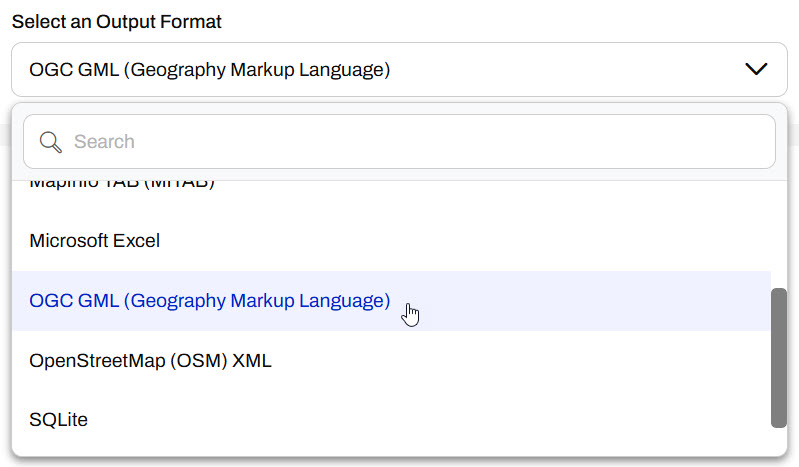
Choice Drop-Down Select One
FME Flow presents you with a drop-down list of options. Since you can only select one option, the menu retracts after you make a selection.
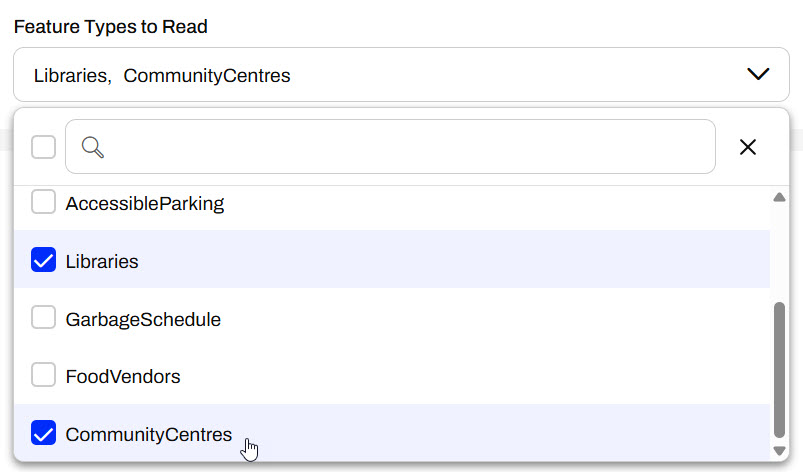
Choice Drop-Down Select Multiple
When you select multiple options, the drop-down list displays checkboxes to denote which options you choose.
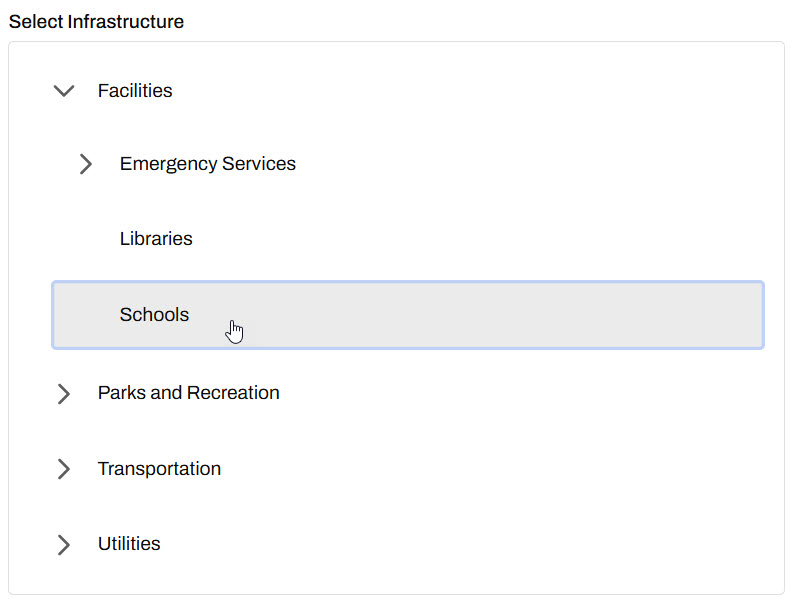
Choice Tree
FME Flow displays a tree of choices using nested expandable options.
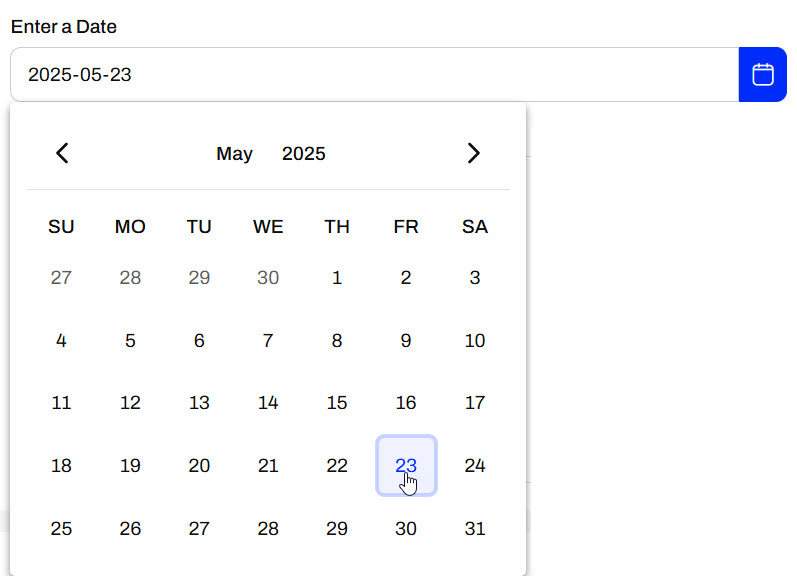
Date-Time
To input a date parameter, you select a date and, if requested, a time from a calendar.
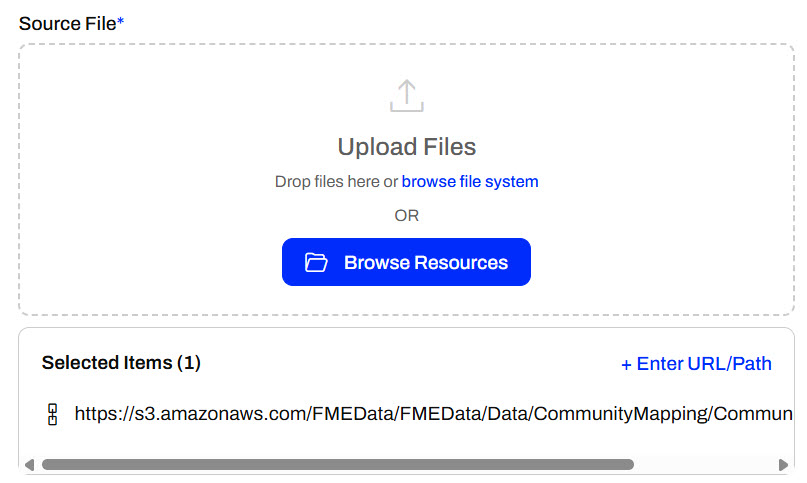
File/Folder/URL
The File/Folder/URL parameter provides a region for dragging and dropping files, for browsing and selecting files from the file system or Resources, and for entering a URL or file path.
Exercise

Jennifer is creating a user-controlled self-serve workflow. Jennifer's workspace reads community features from the CommunityMap file geodatabase and writes them out using a Generic writer, which supports writing to any FME-supported format. She wants the user to be able to select which feature layers to download and the output data format.
For this exercise, follow the steps below to configure the parameters for Jennifer's self-serve workspace and run it on FME Flow.
1) Open and Inspect the Starting Workspace
Open the starting workspace (C:\FMEData\Workspaces\DeployWorkflowsWithFMEFlow\create-a-user-controlled-workspace.fmw) in FME Workbench. The workspace reads in community features from the CommunityMap file geodatabase and then writes them out using a Generic writer.
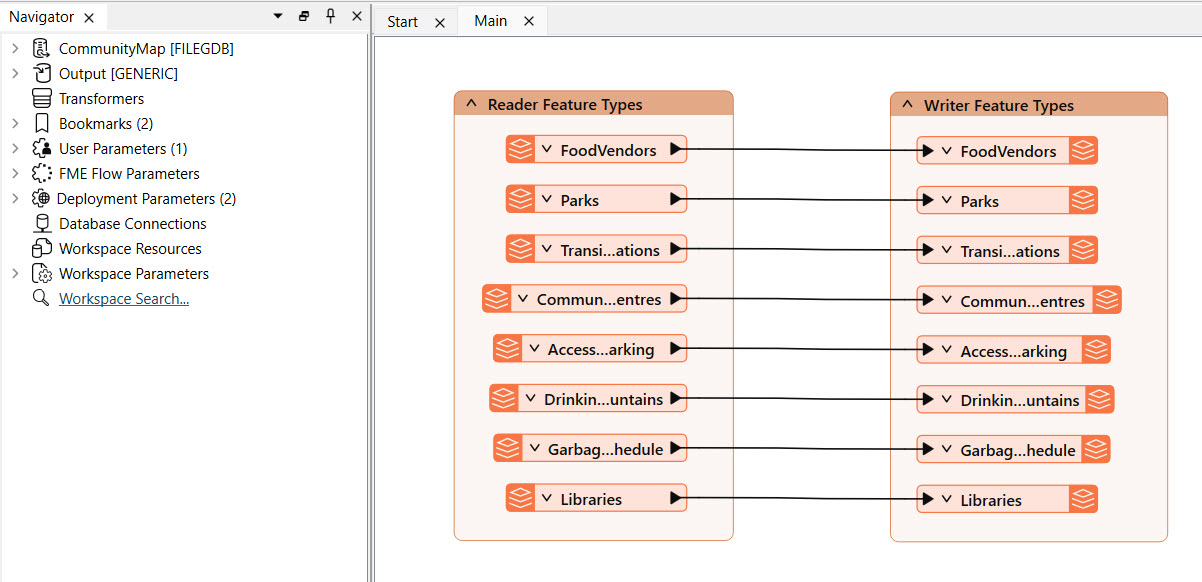
Jennifer has already created a user parameter to specify the data output format, and it's linked to the writer's parameters. However, Jennifer would also like the end-user to select which feature types to include in the output.
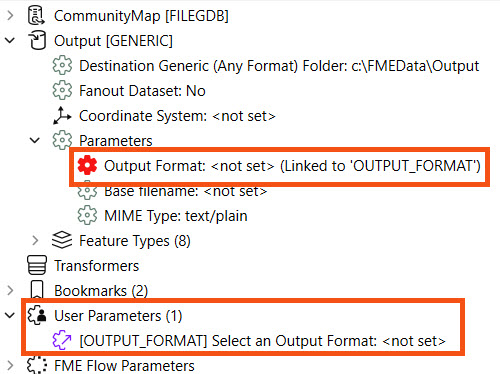
2) Create Feature Types to Read Parameter
In addition to the OUTPUT_FORMAT parameter, Jennifer needs to create a parameter for the user to select which Feature Types to include in the output.
In the Navigator pane, expand the CommunityMap [FILEGDB] reader and further expand the Parameters and Features to Read sections. Right-click the Feature Types to Read parameter and select Create User Parameter.
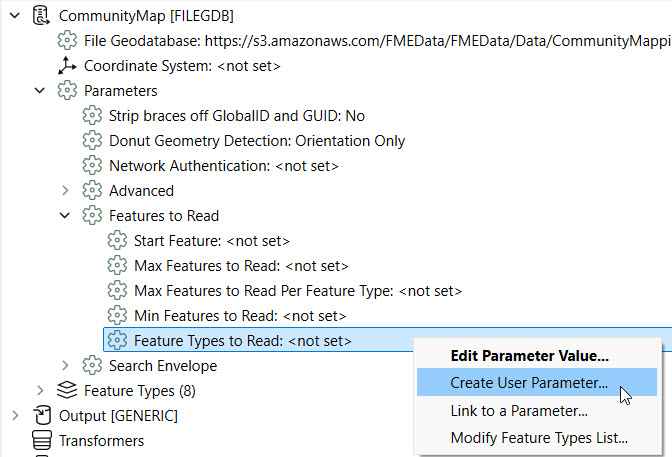
A window displays a list of Feature Types, along with the user parameter name, prompt, and default value.
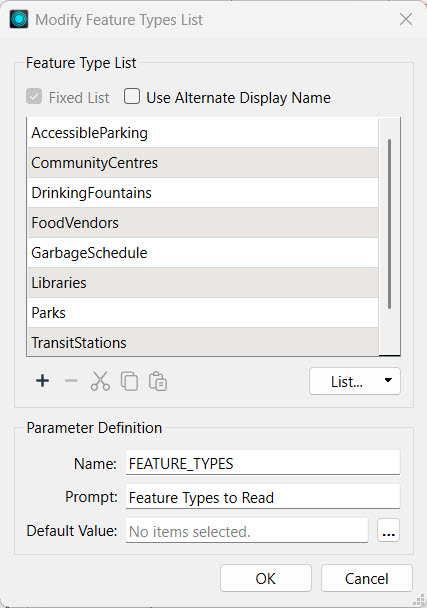
You don't need to alter anything from the default here, so click OK to finalize creating the parameter. This parameter allows the user to control which datasets to include in the output. You should now see both user parameters in Navigator.


You could also create this user parameter in the Manage User Parameters window. However, this method automatically generates the list of available feature types to select from and link the FEATURE_TYPES parameter to the Feature Types to Read writer parameter, so this method is quicker for this scenario.
3) Set Default Value for Output Format Parameter
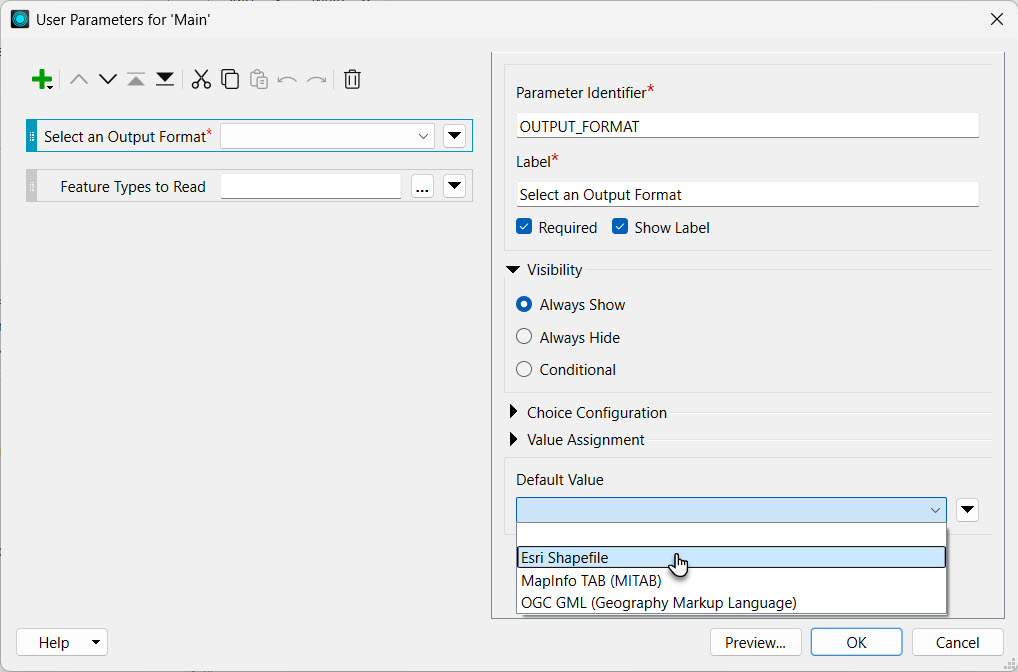
Now, Jennifer would also like to set Esri Shapefile as the default output format. In the Navigator, right-click User Parameters and select Manage User Parameters.
For the Output Format parameter, set the Default Value to Esri Shapefile. Under Choice Configuration, the available format options are Esri Shapefile, MapInfo TAB, and OGC GML.
4) Reorder Parameters
The Feature Types to Read parameter acts on the reader, and the Output Format parameter links to the writer in the workspace. The parameters displayed in this order will also appear in the same order on FME Flow. Reorder the parameters so the Feature Types to Read parameter appears first. Select the Feature Types to Read parameter and click the Move Up button.
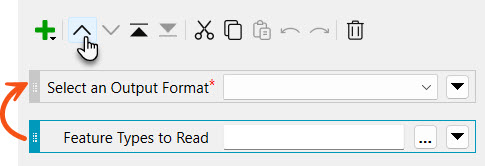
Click OK to close the User Parameters window.
5) Run Workspace
Run the workspace, ensuring Prompt for Parameters is enabled to test that the user parameters function as expected.
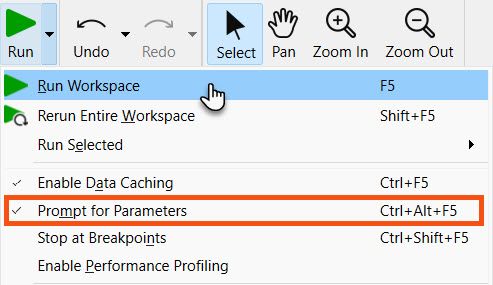
A prompt opens where you select the community map feature types to include and the output format from the drop-down.
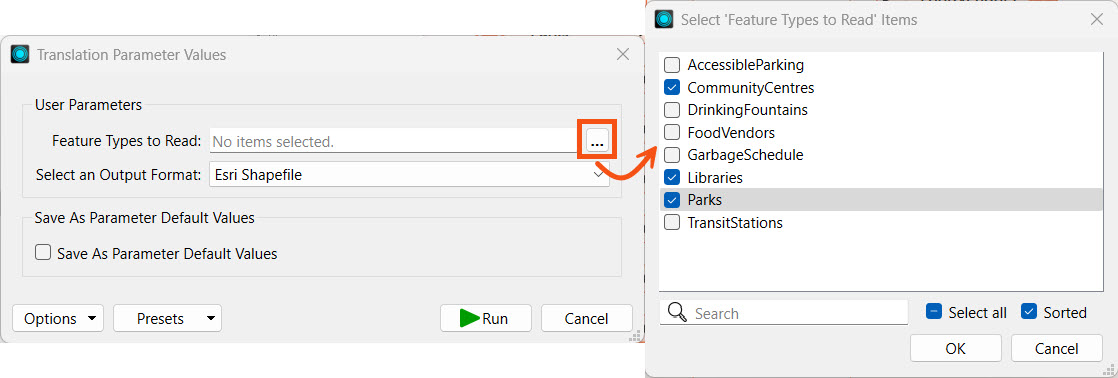
After you make a selection, click Run. The workspace will read only the selected feature type(s) from the File Geodatabase and include them in the output.
6) Publish to FME Flow
Once you confirm the workspace functions as expected on FME Form, you're ready to publish to FME Flow, so Jennifer's colleagues can access it.
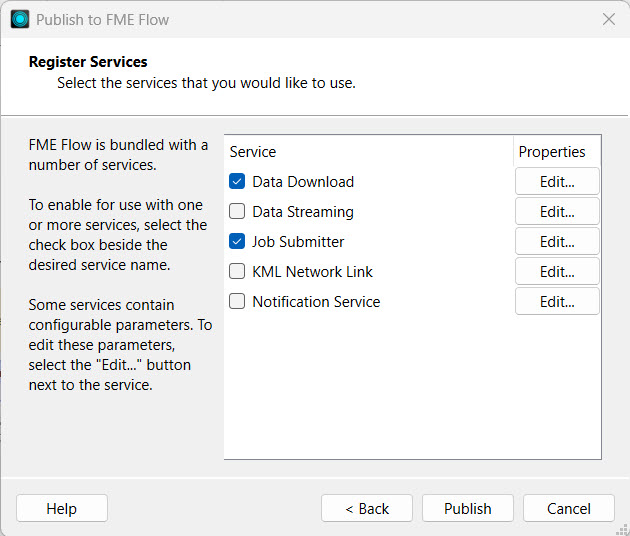
Publish the workspace to the Training repository and register the workspace with the Data Download and Job Submitter services.

Publish to FME Flow
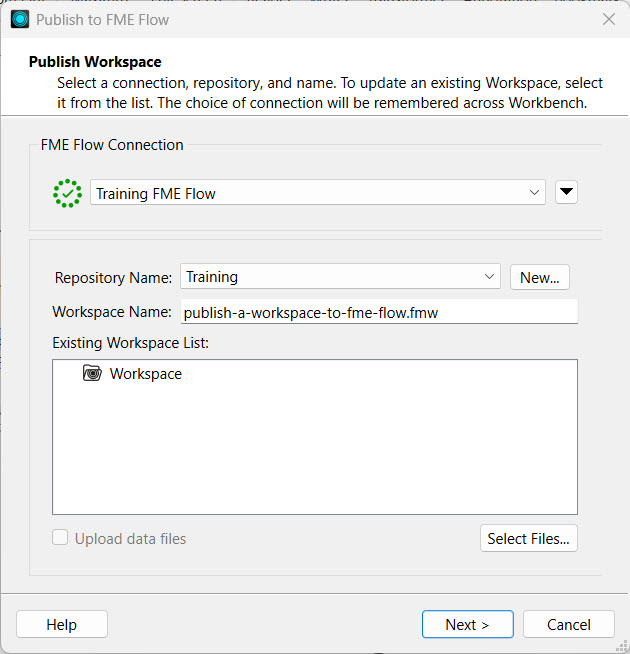
Once you build your workflows in FME Workbench, you need to transfer them to FME Flow through the publishing process. To publish a workspace to FME Flow, you need to complete all the steps in the publishing wizard.
1. Click Publish in the FME Flow Connection toolbar. The publishing wizard window will open.
2. Confirm your FME Flow Connection lists the correct connection and successfully connects to your FME Flow.
3. Select a repository to house the workspace on FME Flow from the drop-down options. To create a new repository, click New and enter its details.
4. Optionally, you may Upload data files to publish the workspace's source data files to FME Flow along with the workspace. You can control which files from the Select Files... option.
5. Click Next to move on to the next step.
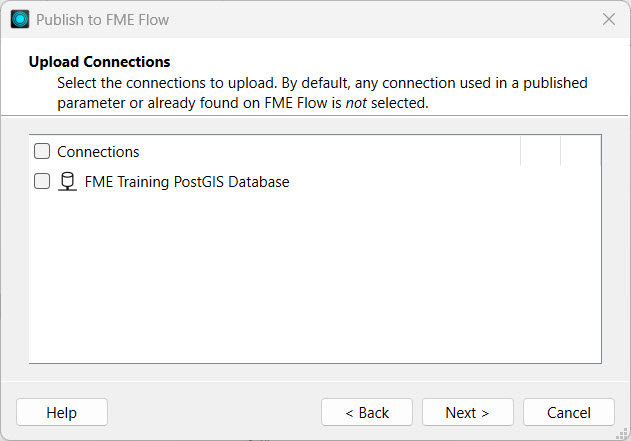
6. If your workspace uses any connections, the Upload Connections section will appear. You can select whether to publish the connections to FME Flow.
7. Register Services is the last publishing step. Select the transformation services you want your workspace to be able to use on FME Flow.
8. Click Publish.
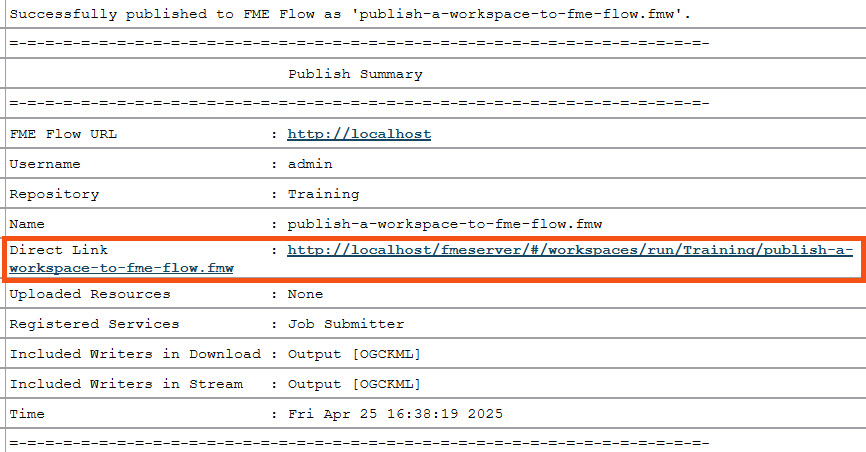
9. The translation log generates a summary of publishing and provides a direct link to open the workspace on FME Flow.
7) Run Workspace on FME Flow
Navigate to FME Flow and open the Run Workspace page. Select the workspace you just published and the Data Download service.
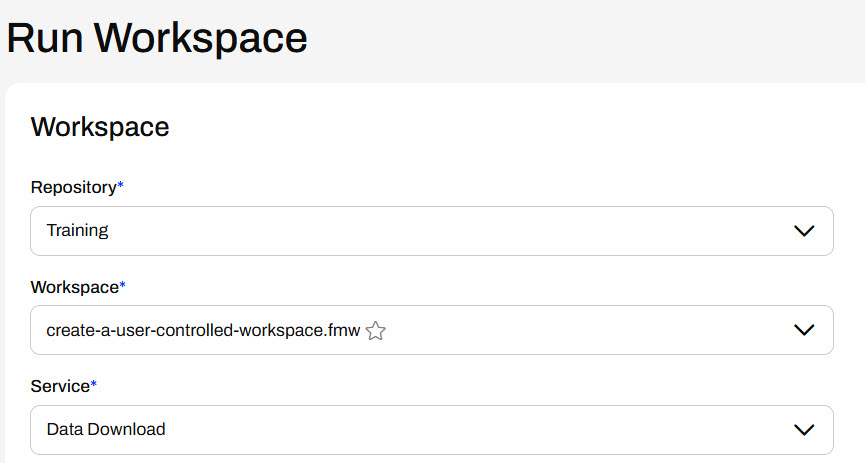
Under User Parameters, you'll see the user parameters you configured in FME Workbench. Select a few Feature Types and an Output Format from the drop-down options.
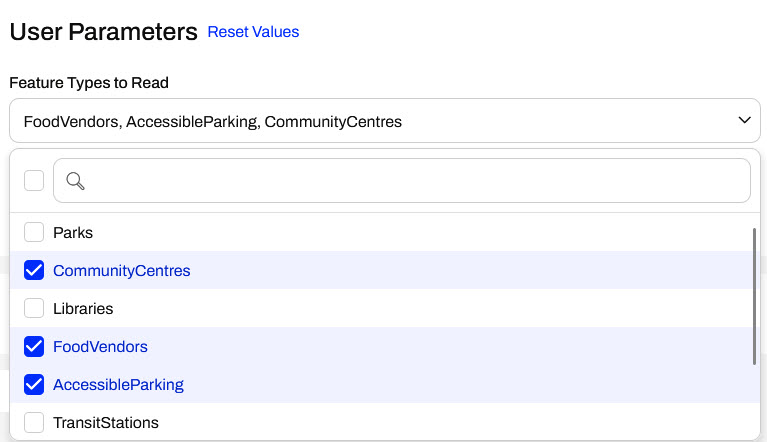
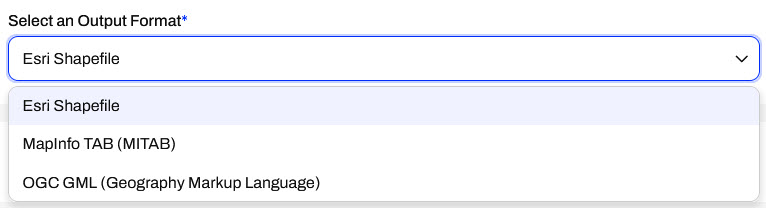
Click Run to run the workspace on FME Flow.
8) View the Results
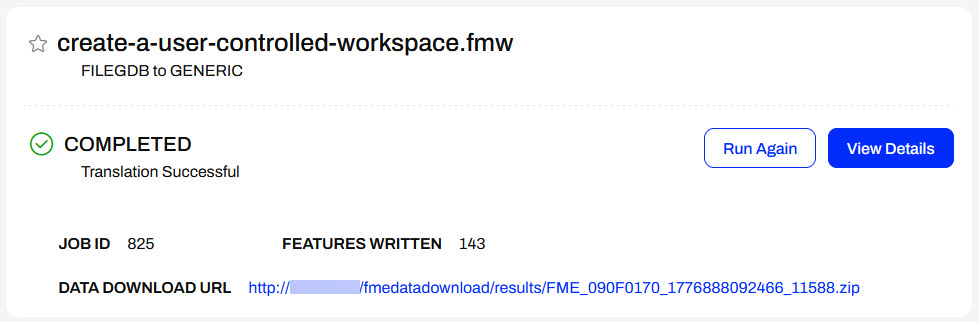
After the workspace runs, FME Flow displays the finished job status and the Data Download URL. Click the URL to download the data.
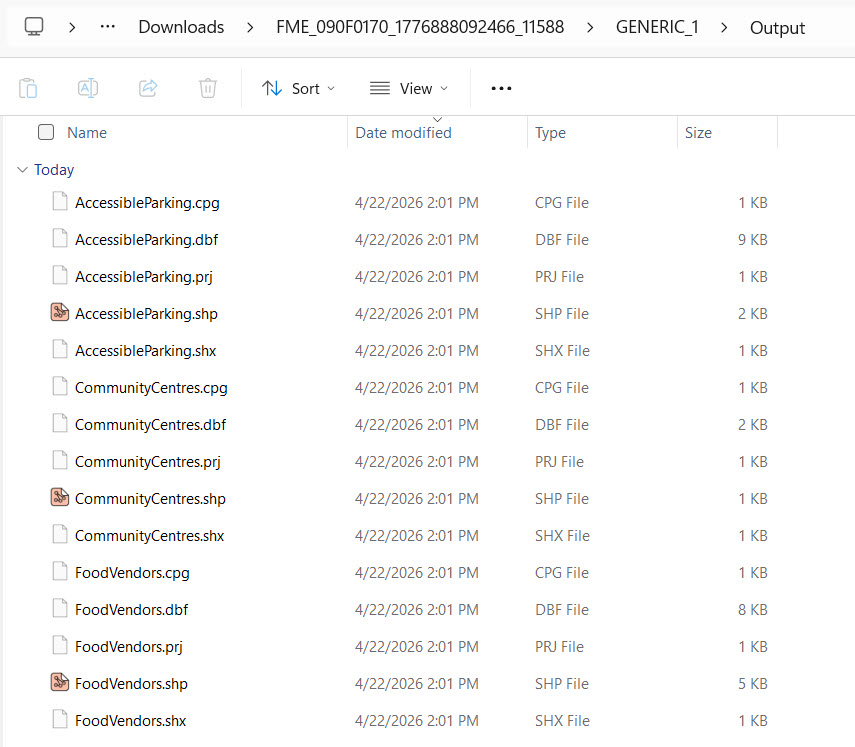
Extract the zip file and open the Output folder to see the data for the feature types you selected.
You've successfully adapted the workspace to allow users to control the community feature types and output format. Using user parameters provides greater flexibility for users to access and receive the exact data they need from the workspace on FME Flow.
Resources
- Starting workspace | C:\FMEData\Workspaces\DeployWorkflowsWithFMEFlow\create-a-user-controlled-workspace.fmw
- Complete workspace | C:\FMEData\Workspaces\DeployWorkflowsWithFMEFlow\create-a-user-controlled-workspace--complete.fmw
User Parameters on FME Flow
FME Flow displays user parameters in a sleek, easy-to-use form that you populate before running the workspace. FME Flow shows each parameter with the appropriate control based on its type. Here are examples of how a few common parameter types appear on FME Flow:
Choice Drop-Down Select One
FME Flow presents you with a drop-down list of options. Since you can only select one option, the menu retracts after you make a selection.
Choice Drop-Down Select Multiple
When you select multiple options, the drop-down list displays checkboxes to denote which options you choose.
Choice Tree
FME Flow displays a tree of choices using nested expandable options.
Date-Time
To input a date parameter, you select a date and, if requested, a time from a calendar.
File/Folder/URL
The File/Folder/URL parameter provides a region for dragging and dropping files, for browsing and selecting files from the file system or Resources, and for entering a URL or file path.
Exercise
Jennifer is creating a user-controlled self-serve workflow. Jennifer's workspace reads community features from the CommunityMap file geodatabase and writes them out using a Generic writer, which supports writing to any FME-supported format. She wants the user to be able to select which feature layers to download and the output data format.
For this exercise, follow the steps below to configure the parameters for Jennifer's self-serve workspace and run it on FME Flow.
1) Open and Inspect the Starting Workspace
Open the starting workspace (C:\FMEData\Workspaces\DeployWorkflowsWithFMEFlow\create-a-user-controlled-workspace.fmw) in FME Workbench. The workspace reads in community features from the CommunityMap file geodatabase and then writes them out using a Generic writer.
Jennifer has already created a user parameter to specify the data output format, and it's linked to the writer's parameters. However, Jennifer would also like the end-user to select which feature types to include in the output.
2) Create Feature Types to Read Parameter
In addition to the OUTPUT_FORMAT parameter, Jennifer needs to create a parameter for the user to select which Feature Types to include in the output.
In the Navigator pane, expand the CommunityMap [FILEGDB] reader and further expand the Parameters and Features to Read sections. Right-click the Feature Types to Read parameter and select Create User Parameter.
A window displays a list of Feature Types, along with the user parameter name, prompt, and default value.
You don't need to alter anything from the default here, so click OK to finalize creating the parameter. This parameter allows the user to control which datasets to include in the output. You should now see both user parameters in Navigator.
You could also create this user parameter in the Manage User Parameters window. However, this method automatically generates the list of available feature types to select from and link the FEATURE_TYPES parameter to the Feature Types to Read writer parameter, so this method is quicker for this scenario.
3) Set Default Value for Output Format Parameter
Now, Jennifer would also like to set Esri Shapefile as the default output format. In the Navigator, right-click User Parameters and select Manage User Parameters.
For the Output Format parameter, set the Default Value to Esri Shapefile. Under Choice Configuration, the available format options are Esri Shapefile, MapInfo TAB, and OGC GML.
4) Reorder Parameters
The Feature Types to Read parameter acts on the reader, and the Output Format parameter links to the writer in the workspace. The parameters displayed in this order will also appear in the same order on FME Flow. Reorder the parameters so the Feature Types to Read parameter appears first. Select the Feature Types to Read parameter and click the Move Up button.
Click OK to close the User Parameters window.
5) Run Workspace
Run the workspace, ensuring Prompt for Parameters is enabled to test that the user parameters function as expected.
A prompt opens where you select the community map feature types to include and the output format from the drop-down.
After you make a selection, click Run. The workspace will read only the selected feature type(s) from the File Geodatabase and include them in the output.
6) Publish to FME Flow
Once you confirm the workspace functions as expected on FME Form, you're ready to publish to FME Flow, so Jennifer's colleagues can access it.
Publish the workspace to the Training repository and register the workspace with the Data Download and Job Submitter services.
Publish to FME Flow
Once you build your workflows in FME Workbench, you need to transfer them to FME Flow through the publishing process. To publish a workspace to FME Flow, you need to complete all the steps in the publishing wizard.
1. Click Publish in the FME Flow Connection toolbar. The publishing wizard window will open.
2. Confirm your FME Flow Connection lists the correct connection and successfully connects to your FME Flow.
3. Select a repository to house the workspace on FME Flow from the drop-down options. To create a new repository, click New and enter its details.
4. Optionally, you may Upload data files to publish the workspace's source data files to FME Flow along with the workspace. You can control which files from the Select Files... option.
5. Click Next to move on to the next step.
6. If your workspace uses any connections, the Upload Connections section will appear. You can select whether to publish the connections to FME Flow.
7. Register Services is the last publishing step. Select the transformation services you want your workspace to be able to use on FME Flow.
8. Click Publish.
9. The translation log generates a summary of publishing and provides a direct link to open the workspace on FME Flow.
7) Run Workspace on FME Flow
Navigate to FME Flow and open the Run Workspace page. Select the workspace you just published and the Data Download service.
Under User Parameters, you'll see the user parameters you configured in FME Workbench. Select a few Feature Types and an Output Format from the drop-down options.
Click Run to run the workspace on FME Flow.
8) View the Results
After the workspace runs, FME Flow displays the finished job status and the Data Download URL. Click the URL to download the data.
Extract the zip file and open the Output folder to see the data for the feature types you selected.
You've successfully adapted the workspace to allow users to control the community feature types and output format. Using user parameters provides greater flexibility for users to access and receive the exact data they need from the workspace on FME Flow.